
I am going to be honest: I love Pinterest, but one thing that annoys me is receiving messages from spammers. These messages can come from someone trying to sell you products or services, or from someone trying to steal your account. So, getting rid of them is essential.
But how do you delete these messages? Well, that’s what this article is about. It will share a step-by-step guide with images on how to delete messages on Pinterest. You will also learn how to decline these messages and permanently stop receiving them.
How To Delete Messages On Pinterest
- Log in to your Pinterest account on a desktop or laptop.
- In the upper right of the screen, you will see the message icon; click it.

- Inside your inbox, find the message you want to delete and hover your mouse over it.
- You will see an “x” sign; click it.
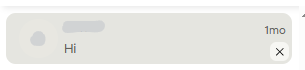
Poof, now the message is gone.
How To Decline A Message On Pinterest
- Head over to the message section.
- Find the message you want to decline.
- Next, click on the decline button located right under the “sent you a message.”

That’s it. Don’t worry, Pinterest does not send a notification to the other person that you declined their message.
How To Stop Getting Messages On Pinterest
If you no longer want to receive random messages on Pinterest, you can turn this option off.
- In the upper right of the screen, click on the down arrow, and a menu will open.
- On the menu, click on “Settings.”
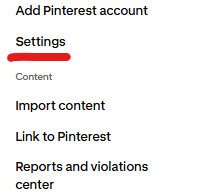
- Next, on the left side of the screen, you will see setting options such as edit profile, account management, and more. From there, click on “Social Permissions.”

- On the page, you will see a toggle button right next to “A message button will appear on your profile so others can message you.” Click on it to turn it off.
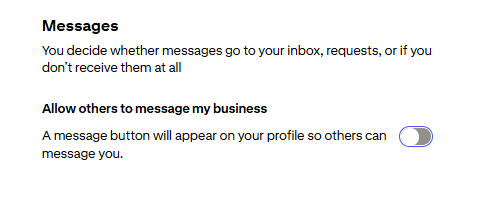
Click on the “Save” button, and that’s it. Now you won’t be receiving messages from spammers.
How To Change The Messages Setting On Pinterest
- Go to Settings> Social Permission.
- In the message section, toggle on the button “Allow others to message my business.”

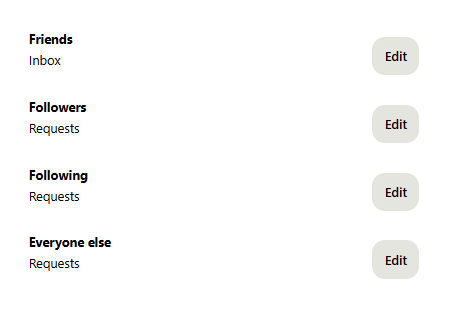
- Next, you will see options to change message settings for friends, followers, those you follow, and everyone else.
- From the options, select the one you want to change the message settings for and click “edit” right next to it.
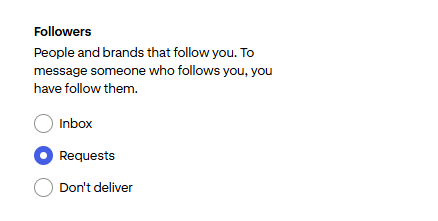
- You will have three options: inbox, request, or don’t deliver. Choose the one that fits your needs, then click Save.
How To Report A Message On Pinterest
Yes, you can report a message on Pinterest, but only do this for serious cases.
- Open your inbox and find the message you want to report.
- Once you find the message, click on it. This will open the conversation tab.
- In the upper right corner of the screen, you will see three dots “…” right next to the name of the sender. Click on it.
- A drop-down menu will open from there, click “Report.”
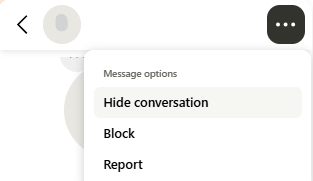
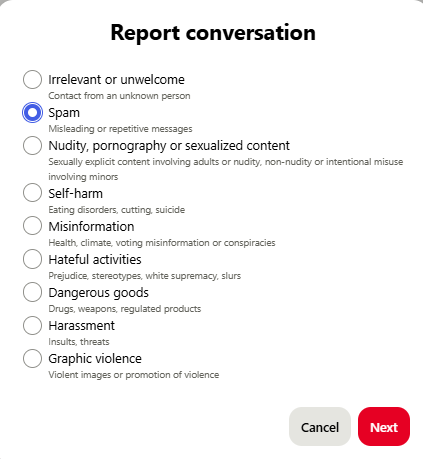
- The report conversation pop-up will open from there. Select the most appropriate option based on your situation, then click next.
- Next, Pinterest will let you know all the essential information, and will provide you with the option to block that person.
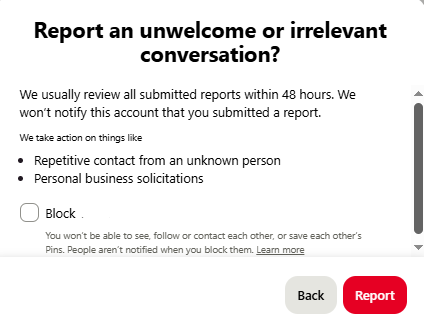
- Once you are done, click “Report,” and that’s it.
Frequently Asked Questions
Q: Does deleting a Pinterest account delete messages?
Yes, once you delete your Pinterest account, all messages will be gone as well.
Q: Are Pinterest messages private?
Yes, your messages on Pinterest are private and can only be seen by you or the person you are messaging.
Related Posts:
- How Do I Find My Saved Pins On Pinterest
- How To Delete Pins On Pinterest
- How To Delete A Pinterest Board
- How To Make A Pinterest Board Private
- How To Make Pinterest Board Sections
- 10 Profitable Candle Business Ideas - March 5, 2026
- 10 Hobbies That Make Money - March 2, 2026
- 20 Summer Jobs For Teens - February 21, 2026


