

Do you love saving pins on Pinterest so much that you completely lose track? I know it can happen because Pinterest has so much cool stuff for inspiration across any niche, from home decor to recipes to even motivational quotes.
But after saving all those great ideas, you might find yourself asking, “Wait, where are my saved Pins?”
Don’t worry, that can happen, and your pins aren’t lost; you just need to locate them in the right places.
In this article, I will share a step-by-step guide to finding your saved pins using different methods. Just follow these steps so you can get back to saving new ideas.

How Do I Find My Saved Pins On Pinterest
1. Locate From Profile:
- Log in to your Pinterest account.
- Click your profile icon, usually located in the top-right corner of the screen.
- Once you land on your profile page, go to the saved section, and you’ll see all your boards. That’s where all your pins are saved.
2. Use the Search Bar:
Before you try it, I want you to know that this method only works if you saved pins directly from the website, not from the Pinterest platform.
- Head over to the search bar at the top of your screen.
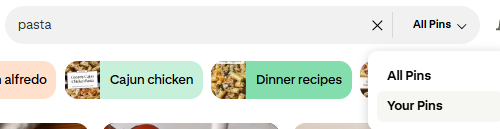
- Enter keywords related to the pin you are looking for. For example, if you are trying to find a pasta recipe, just type “pasta.”
- Next, near the search bar, you will see a small tab with “All Pins” written on it. Click on it.

- From the drop-down menu, click on “Your Pins,” and it will show you all the pins you saved directly from the website.
3. Use Pinterest’s “Recently Viewed” Option:
Maybe you were recently looking at a Pin but forgot to save it to a board. Don’t worry, there is a way to find it.
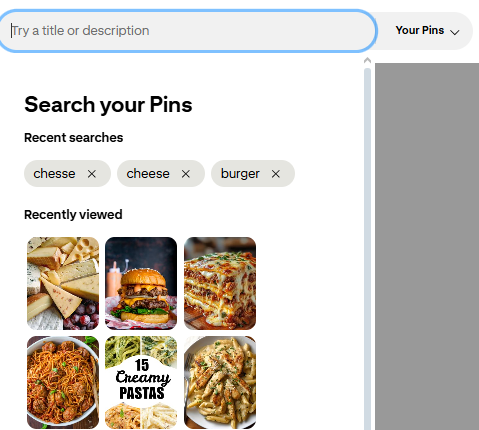
In the top-right corner of the screen, you will see a small magnifying glass. Click on it, and you’ll find all your recently viewed pins.
While with this way you can only see a limited number of pins, knowing this method can come in handy sometimes.
Tips To Stay Organized On Pinterest
Create Boards For Different Topics: Doing this makes it easier to find what you need. For example, have separate boards for “Crafting,” “Recipes,” and “Business Goals.”
Use Board Sections: Pinterest has made it easier to find pins when you need them with its section feature. Inside a board, you can create 30+ sections. For example, under a Recipe board, you can make sections like “Baking,” “Fast Meals,” or “Desserts.”
Delete Pins: When a pin no longer seems useful, you can delete it instead of letting it sit there. Check out this article to help you out, “How to unsave pins on Pinterest.”
Conclusion
With the three methods shared in this article, you are sure to find your lost Pins. Next time, make sure you save your pins in the right board so you can easily find them later.
Related Posts:
- How To Make A Pinterest Board Private
- How To Delete A Pinterest Board
- How To Make A Board On Pinterest
- How To Make Pinterest Board Sections
- How To Post On Pinterest Using Computer Or Phone

- 10 Profitable Candle Business Ideas - March 5, 2026
- 10 Hobbies That Make Money - March 2, 2026
- 20 Summer Jobs For Teens - February 21, 2026


