
Pinterest is a great place to gather some ideas and inspiration. Whether you are planning a family gathering, decorating your house, or finding meal ideas for the weekend, the platform has it all.
But over time, those saved pins can pile up, or you may realize that some of those pins aren’t useful anymore. What should you do? Well, delete those pins. Deleting pins can help you keep your Pinterest board tidy and relevant, and make it easier to find newer saved pins.
If you are new to Pinterest, you might need some help deleting those, and that’s what this post is here for. It will walk you through a guide on how to delete pins on Pinterest. I will share a step-by-step guide for the desktop and mobile versions so you can manage your account with ease.
How To Delete Pins On Pinterest From Desktop
1. Logging In to Your Account:
Open your preferred browser, go to Pinterest, and log in to your account if you’re not already signed in.
2. Go to Your Profile:
In the top-right corner of the screen, you’ll see your profile picture. Click on it, and it will take you to your profile.
3. Find the Board with the Pin:
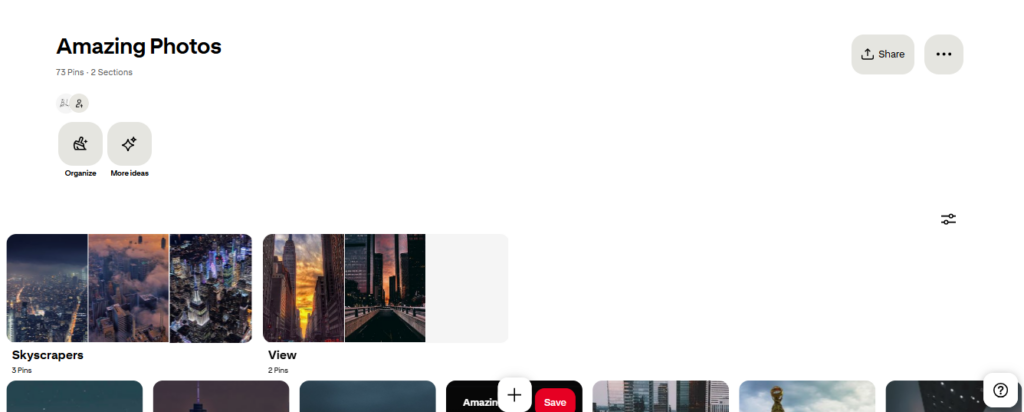
Once you’re on your profile, locate the board where the pin you want to delete is saved. Click on the board to open it.
4. Locate the Pin:
Scroll through the board to find the pin you want to delete.

5. Delete the Pin:
Move your mouse over the pin you want to delete, then click the pencil icon. A pop-up box will appear. At the bottom of this box, you’ll see an option that says “Delete.” Click on it.

You will be asked to confirm that you want to delete this pin. If you’re sure, click “Delete Pin” again to confirm the action.
That’s it. However, if you can’t see the option, make sure you’re logged in to the correct account, or try refreshing your page.
How To Delete Pins On Pinterest From Mobile
1. Open the Pinterest App:
Open the Pinterest app on your mobile. Make sure you are logged in to your account. If you are not, type in your email and password and click log in.
2. Go to Your Profile:
Click on your profile picture at the bottom-right corner of your screen. This will lead you to your Pinterest profile, where all your boards and pins are stored.
3. Select the Board:
Once you’re on your profile, tap on the board that contains the pin you want to delete.
4. Find the Pin You Want to Delete:

Scroll through the board to locate the pin you want to remove. If the board has many pins, it may take some time to find the exact one.
5. Tap on the Pin:

When you find the pin, tap on it to open it. This will show you a larger view of the pin along with some additional options.
6. Delete the Pin:
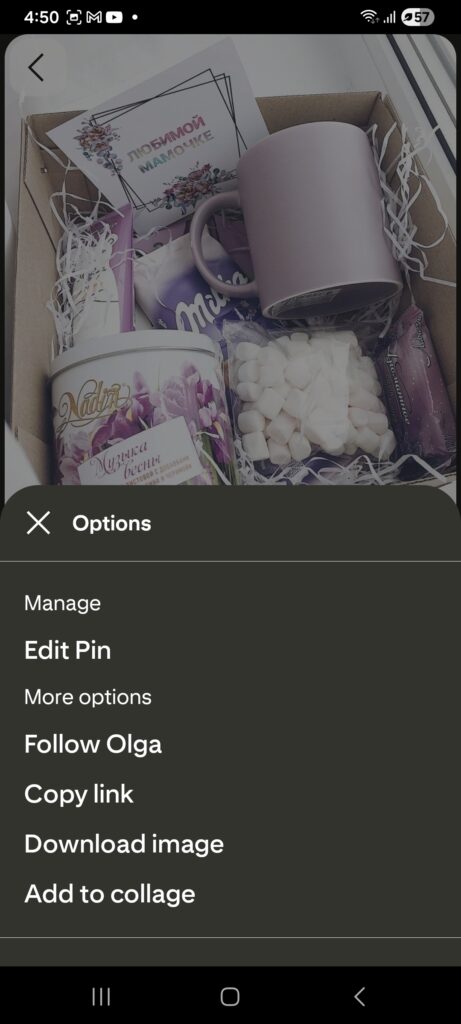
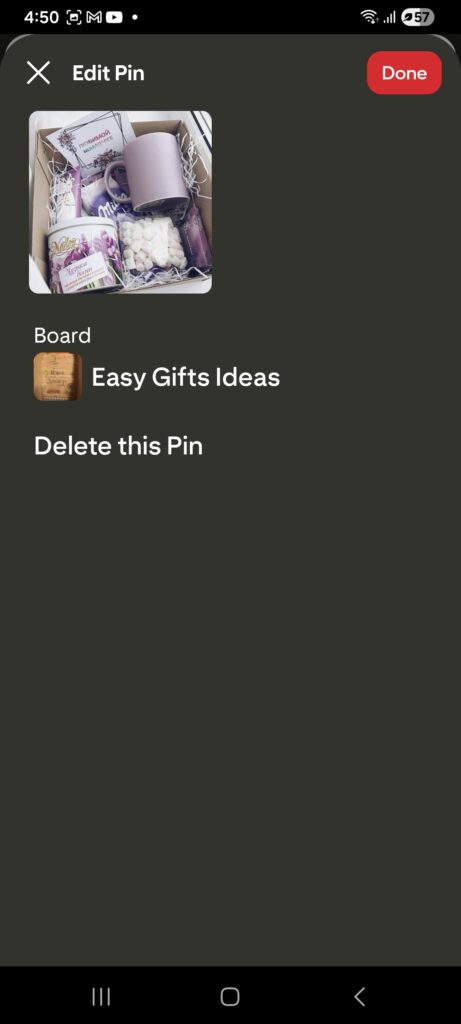
Once the pin is open, look for the three-dot menu icon (usually in the bottom-right corner).
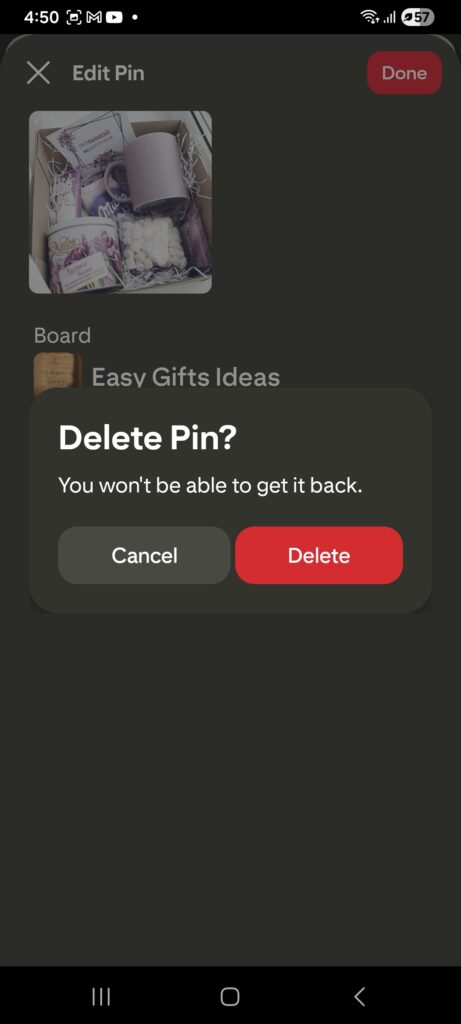
Tap the three dots to open a menu. From there, select the “Edit Pin,” and you’ll find the “Delete this Pin” option, and click on it.
Then you’ll get a confirmation asking if you’re sure. Tap “Delete” to confirm, and the pin will be permanently removed from your board.
Bulk Deletion
Unfortunately, the platform does not offer bulk deletion. If you have a lot of pins you want to delete, you will need to remove them one by one. To save time, consider organizing your Pinterest boards weekly and avoiding saving unnecessary pins.
Conclusion
Cleaning up your Pinterest board can help you stay organized and keep your account clean. Deleting pins on Pinterest is quite easy, whether you’re using the PC or the mobile app. Just follow these steps, and you’ll get the job done with ease.
Frequently Asked Questions
Q: Should you delete old pins?
It’s not always necessary to delete old pins unless they’re outdated, irrelevant, or have broken links.
Q: Can I delete my Pinterest and start over?
Of course, you can delete your Pinterest account and create a new one to start over. Just make sure to save anything you want to keep before deleting, as the process is permanent.
Related Posts:
- What Is Pinterest?
- How To Delete A Pinterest Board
- How To Make A Pinterest Board Private
- How To Make A Board On Pinterest
- How To Post On Pinterest Using Computer Or Phone
- How To Make Pinterest Board Sections
- 10 Profitable Candle Business Ideas - March 5, 2026
- 10 Hobbies That Make Money - March 2, 2026
- 20 Summer Jobs For Teens - February 21, 2026


